AskSharper tells you what to say next — the local AI meeting assistant for Windows.
AskSharper transcribes your call on your own machine with Whisper. Press F2 and it suggests your next line using your own Anthropic key — your audio never leaves your PC.
Windows 10 & 11 only · Requires your own Anthropic API key · Free during beta · Audio stays on your device
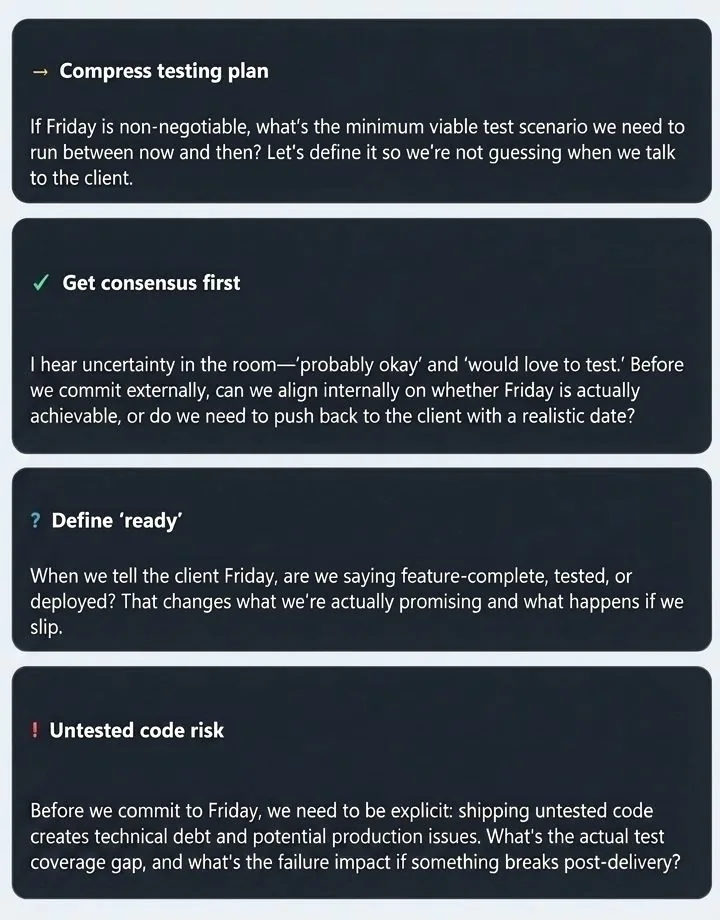
What is AskSharper?
AskSharper is a local AI meeting assistant for Windows. It listens to your mic and system audio and transcribes on your own device with Whisper. When you press F2, only the recent text is sent to Claude using your own Anthropic key to suggest what to say next. Audio never leaves your PC.
See it in action
One session, start to finish.
Every screen below is the shipping app on Windows 11 — nothing staged or redrawn.
-
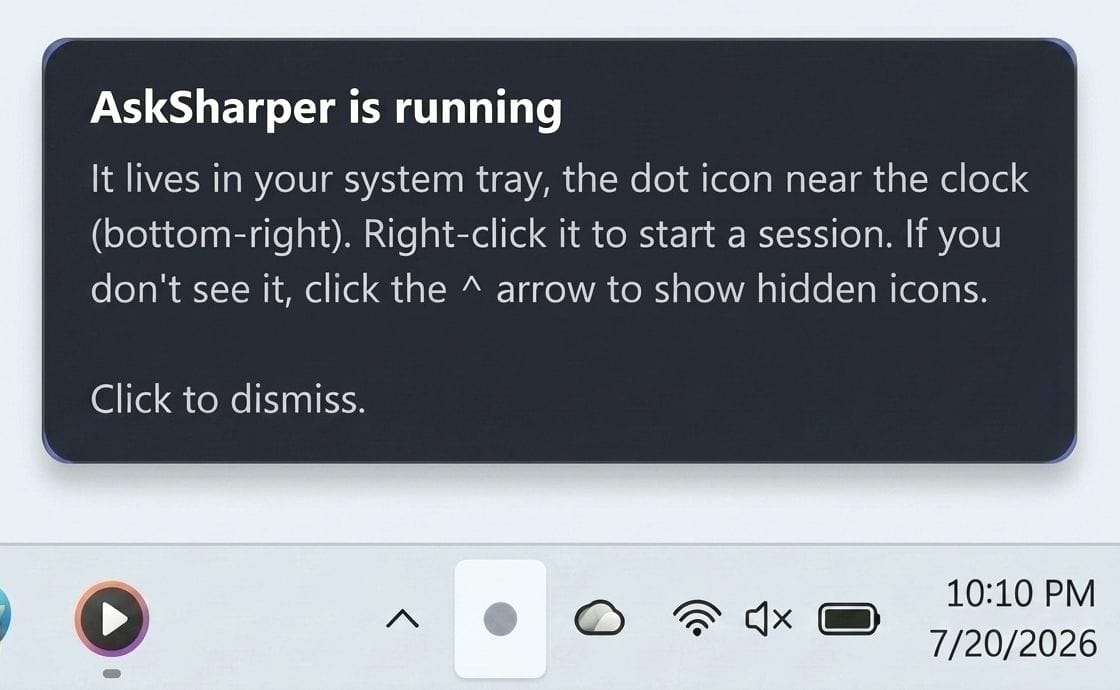
It starts in your system tray
AskSharper installs as a tray app. No window to manage, no bot to invite to the call, nothing for other participants to see.
-
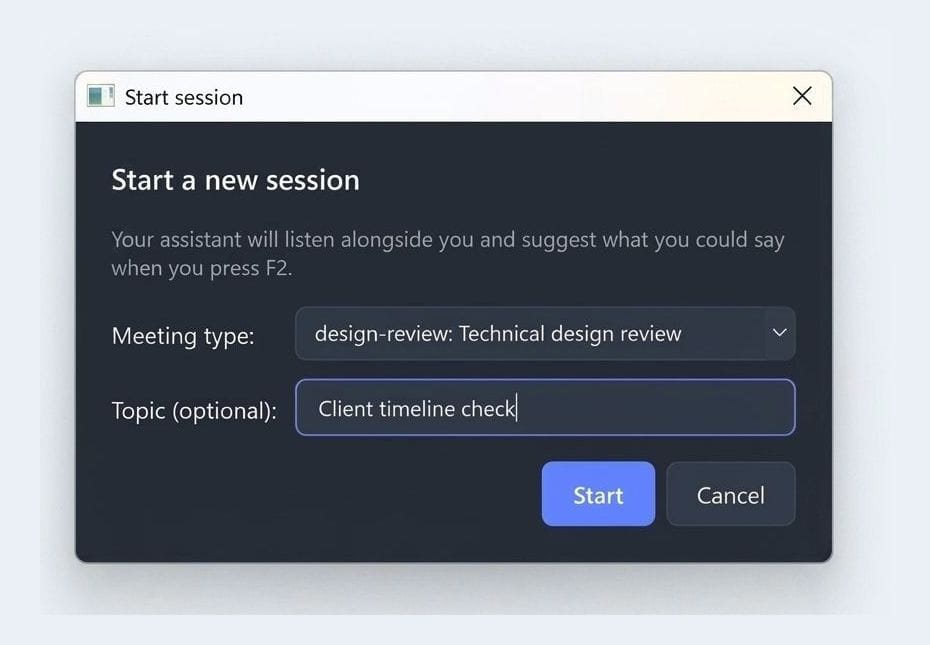
Tell it what kind of call this is
Pick a meeting type and, optionally, a topic. That’s what shapes the kind of suggestion you get back.
-
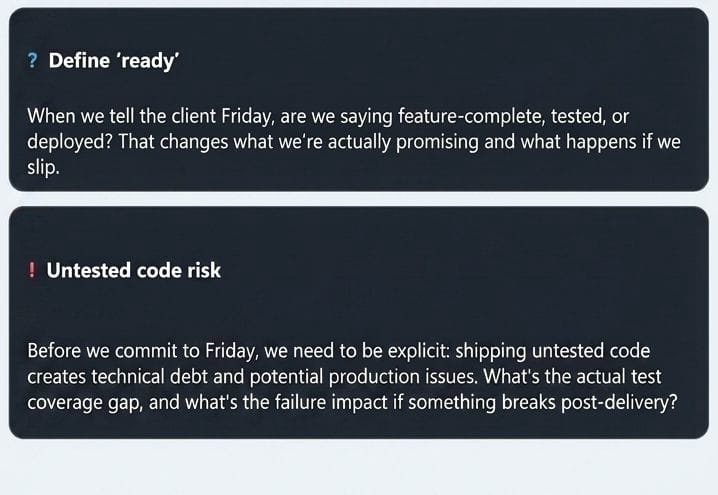
Press F2 and see what to say
Mid-call, press F2. A few options appear over your screen — a sharper question, a risk worth naming, a word worth defining. Nothing is spoken or sent for you.
“When we tell the client Friday, are we saying feature-complete, tested, or deployed? That changes what we’re actually promising.”
— one of four suggestions from the session above.
-
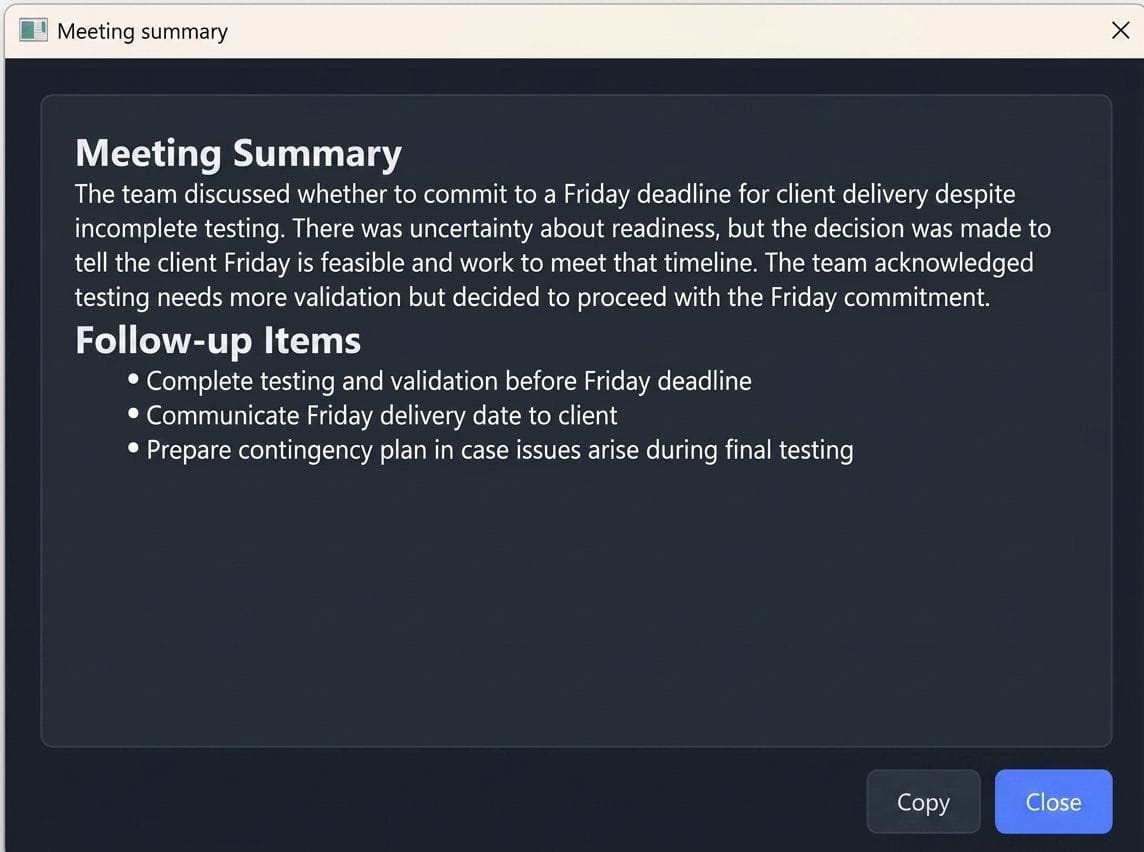
End with a summary you own
Stop the session and AskSharper writes a summary and follow-up items — the AI meeting notes you’d expect, produced and stored on your own machine.


Windows 10 & 11 only · You’ll paste your own Anthropic API key on first run.
The wedge
Note-takers record. AskSharper tells you what to say.
Passive tools transcribe the call and hand you a summary afterward. AskSharper works in the moment: press F2 mid-conversation and it reads the recent transcript and suggests a sharper question, a risk to surface, or a point you might be missing — while it can still change the outcome. That real-time coaching is the one thing no note-taker does.
Install in under two minutes
Download, run, paste your key, press F2.
Before you download
- Windows 10 or 11 only. There is no Mac or Linux build yet — get notified when Mac lands.
- You bring your own Anthropic API key. Create one at console.anthropic.com and paste it once on first run. You pay Anthropic directly for what you use; there is no AskSharper account and no subscription.
- Telling the room is your job. AskSharper shows a consent reminder every session, but you’re responsible for actually notifying the other participants. Read the detail.
-
Download the Windows installer.
-
Run the installer (Windows 10 or 11).
-
Paste your Anthropic API key when it asks.
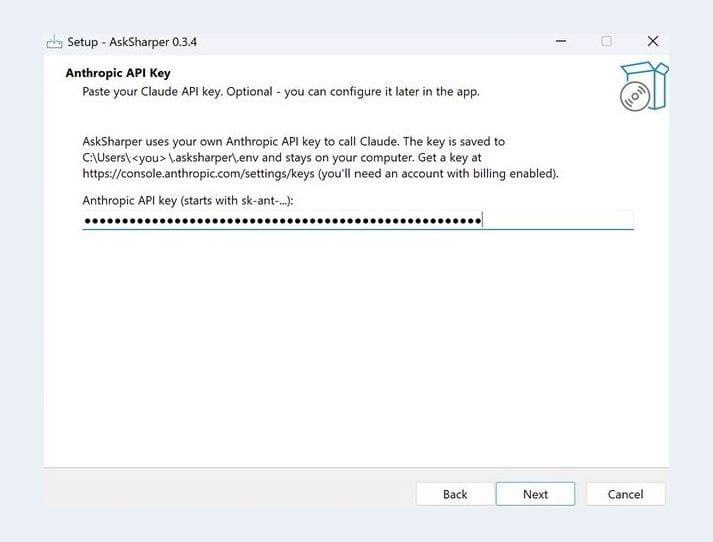
This step is optional — you can skip it and add your key later in the app. -
Press F2 in your next meeting and see what to say next.

Windows 10/11 installer. Free during beta. No account needed.
Under the hood
Three steps. Audio stays on your device throughout.
-
Step 1
Runs alongside your meeting app
Start it next to Teams, Zoom, Meet, or Discord. It uses OS-level audio, so there’s no bot to invite.
-
Step 2
Whisper transcribes locally
Speech-to-text runs on your own CPU and turns audio into text right on your device. Nothing is uploaded.
-
Step 3
Press F2 for a suggestion
Only recent text (never audio) goes to Claude on your own key. You get options for what to say next.
Works with
- Zoom
- Microsoft Teams
- Google Meet
- Discord
- Webex
How it compares
AskSharper vs cloud note-takers and Cluely
| Capability | AskSharper | Cloud note-takers (Otter, Fireflies) | Cluely-style real-time tools |
|---|---|---|---|
| Where audio is processed | On your device (local Whisper) | In the cloud | Typically in the cloud |
| Pricing model | Bring your own key, no per-seat fee | Per-seat SaaS subscription | Per-seat SaaS subscription |
| Works with any meeting app | Yes — OS-level audio, no bot | Often via a per-platform bot or plugin | Varies by tool |
| Tells you what to say in real time | Yes — press F2 | No — records and summarizes | Yes (their category) |
| Per-session consent reminder | Yes, built in | Varies by tool | Varies by tool |
Comparison reflects the general categories, not every product; features of other tools change over time.
Private, on-device by design
Your audio never leaves your device.
The only thing that ever leaves your PC is the recent transcript text, and only when you press F2 — sent straight to Anthropic on your own API key. Your audio never does: it’s captured and transcribed entirely on your machine.
Local Whisper transcription
Speech-to-text runs on your CPU. AskSharper has no backend that touches your audio. Ever.
Bring your own Anthropic key
Text goes directly from your device to Anthropic, on your account. AskSharper doesn’t proxy, store, or see that traffic.
No telemetry
The shipped build sends no usage data, no error reports, no diagnostics. Not to us. Not to anyone.
Consent is on you
A consent reminder is built in — the rest is your call.
Recording and transcription laws vary by state and country. AskSharper shows a consent reminder at the start of every session as a built-in feature, but you are responsible for actually notifying every participant — especially in all-party-consent jurisdictions like California, Florida, Illinois, Massachusetts, and Washington.
Who it’s for
For anyone who has to think and talk at the same time.
Independent consultants
Discovery, scope, kickoffs, client check-ins. Lead the conversation and still land a sharper follow-up question.
Interviews
On either side of the table, surface a risk you’d otherwise miss before the moment passes.
Sales & client calls
Keep momentum and don’t let a constraint slip past while you’re busy carrying the call.
Built by an independent dev who kept freezing in client calls — and wanted a second brain that stayed on his own machine.
FAQ
Frequently asked questions
Does my meeting audio leave my device?
No. AskSharper transcribes your mic and system audio locally on your own machine with Whisper — the audio is never uploaded. Only when you press F2 does the recent text (never audio) go to Claude, sent directly from your device to Anthropic on your own API key.
Do I need an Anthropic API key, and what does it cost?
Yes — AskSharper uses your own Anthropic API key, so suggestions go directly from your device to Anthropic on your account. AskSharper itself is free during beta; you pay Anthropic per use on your own key, and there’s no per-seat subscription to AskSharper. You can create a key at console.anthropic.com.
How is this different from an AI note taker like Otter or Fireflies?
Note-takers record and summarize after the fact. AskSharper does that locally too — you get a transcript and an end-of-session summary — but its point is real time: press F2 and it tells you what to say next, in the moment. No passive note-taker does that.
Does it work with Zoom, Teams, and Google Meet?
Yes. AskSharper captures audio at the operating-system level, so it works with any meeting app — Zoom, Microsoft Teams, Google Meet, Discord, Webex — with no bot to invite and no per-app plugin to install.
Is it legal to record or transcribe a meeting?
It depends on where you and the other participants are. Some places require all parties to consent (for example California, Florida, Illinois, Massachusetts, and Washington). AskSharper shows a consent reminder at the start of every session, but you are responsible for actually notifying everyone.
Is AskSharper free?
AskSharper is free during beta. You bring your own Anthropic API key and pay Anthropic directly for the API usage; there is no AskSharper subscription. Windows 10 and 11 are supported today.
What is the F2 key for?
F2 is the trigger. While you’re in a call, press F2 and AskSharper sends only the recent transcript text to Claude on your own key and shows a few suggestions for what you could say next — a sharper question, a risk to surface, a point you might be missing.
Is there a Mac version?
Not yet. AskSharper runs on Windows 10 and 11 today. A Mac version is planned for later — the fastest way to hear when it lands is the ‘Get notified’ link.
Ready when you are.
Install the local, private meeting assistant and press F2 in your next call.
Free during beta · Windows 10 & 11 · Mac later · Bring your own Anthropic key.
Know someone who talks for a living? Send them this — it’s free, private, and runs entirely on their own machine.
Updated 2026-07-17